Reading USB Ports: A Practical Guide to Symbols, Speeds, and Power
Two decades of USB evolution have left us with tridents, color codes, and cryptic labels. Here's how to decode what your ports and cables can actually do.
The Trident and Its Many Meanings
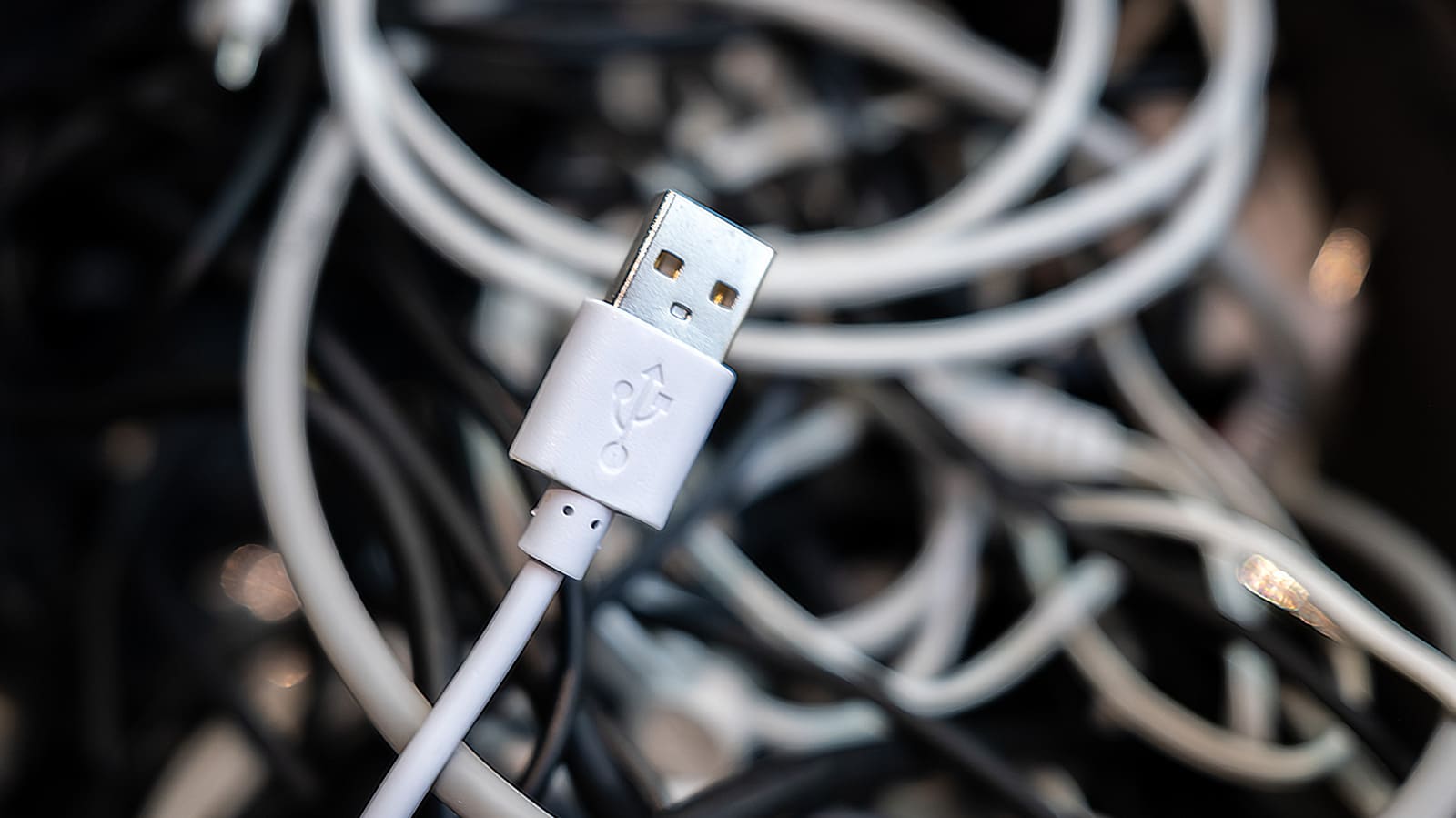
The three-pronged USB logo has marked billions of ports since the late 1990s, but its meaning has fractured over time. When you see it standing alone, without accompanying text or symbols, you're likely looking at USB 2.0, the baseline standard that arrived in 2000. Its 480 megabits per second of bandwidth was marketed as "High Speed" at launch, a label that now feels quaint. Today, USB 2.0 remains adequate for keyboards, mice, and other peripherals where data throughput barely registers, but it's a bottleneck for almost anything else.
The trident became more informative, and more confusing, with USB 3. That generation brought real speed but also a cascade of rebranding. The original USB 3.0 specification, released in 2008, offered 5Gbps bandwidth and earned the "SuperSpeed" moniker. By 2013, USB 3.1 doubled that to 10Gbps and added a plus sign: "SuperSpeed+". USB 3.2, arriving in 2017, pushed further to 20Gbps and a label so unwieldy, "SuperSpeed USB 20Gbps," that it became a punchline among engineers.
The USB Implementers Forum, the consortium responsible for the standard, compounded the confusion with "Gen" designations: USB 3.2 Gen 1x1 referred back to the original 3.0 spec, a naming scheme that felt like archaeology rather than clarity. By 2022, the forum simplified: USB 5Gbps, USB 10Gbps, and USB 20Gbps. The new labels at least communicate the one thing that matters most: throughput. Ports and cables that meet these specifications typically display the trident alongside "SS" and a number indicating gigabits per second.
Color as Signal, Color as Guess
Manufacturers have used color to differentiate USB capabilities for years, though the system has never been standardized beyond a few anchors. Black or white ports almost always indicate USB 2.0. Blue, the only color officially endorsed beyond that, typically signals USB 5Gbps, the speed originally called USB 3.0. Some vendors, however, have stretched blue to cover later generations, making it an unreliable marker on its own.
Red ports carry two meanings. They often denote USB 10Gbps or USB 20Gbps, but they also frequently supply power even when the host machine is off, a feature useful for charging devices overnight without booting up. Yellow ports offer a similar always-on power function and can correspond to either USB 2.0 or USB 5Gbps speeds, depending on the manufacturer's whim. Purple ports exist in niche ecosystems, tied to specific brands with no universal definition.
The USB Implementers Forum now encourages device makers to rely on symbols rather than color, a tacit acknowledgment that the rainbow has become more confusing than clarifying. Only white, black, and blue carry official meanings; everything else is manufacturer discretion. If you want certainty, look for printed icons or consult the spec sheet.
USB4 and the Leap to Eighty Gigabits
USB4, introduced in 2019, marked a shift in architecture and branding. The original version supports either 20Gbps or 40Gbps, with labels, USB 20Gbps and USB 40Gbps, that align with the USB 3 naming convention. The logo places the trident next to a number and a half-circle, a visual cue that distinguishes it from earlier generations. USB4 Version 2.0, released in 2022, reaches 80Gbps and is marketed as USB 80Gbps, a ceiling that feels almost excessive until you consider 8K video workflows or multi-drive RAID arrays.
One critical constraint: USB4 exists only on USB-C connectors. That doesn't mean every USB-C port is fast. USB-C describes the physical shape, not the underlying protocol. A USB-C port can carry USB 2.0 speeds just as easily as USB4, and cheap cables often do exactly that. The connector's reversibility and slim profile have made it ubiquitous, but the electronics behind the port vary wildly.
To illustrate the performance gulf: moving 100 gigabytes of data over USB 2.0 takes roughly 28 minutes under ideal conditions. USB 5Gbps cuts that to two minutes and forty seconds. USB4 at 40Gbps completes the transfer in twenty seconds. Those differences compound when you're working with large media files, virtual machines, or backup drives.
Beyond Speed: Power, Video, and Thunderbolt
USB ports do more than move data. Power Delivery, often marked by a battery icon or "PD" text, enables smart charging that adjusts voltage and current based on what a device needs. This is the port you want for laptop charging, where a USB-C cable can replace a proprietary brick. PD-capable ports negotiate power levels up to 240 watts, enough to drive gaming laptops and external GPUs.
DisplayPort Alt Mode allows USB-C ports to output video, turning a single cable into a conduit for display, data, and power simultaneously. Ports that support this feature typically carry the DisplayPort logo, a stylized "DP" inside a rectangle. The capability is common on recent laptops and monitors, but not universal; budget devices often omit it to save on licensing and circuitry.
Thunderbolt, identified by a lightning bolt with an arrowhead, operates as a superset of USB-C. Thunderbolt 3 and later versions use the USB-C connector but guarantee capabilities that USB4 only optionally supports. Thunderbolt 4, for instance, mandates dual 4K display output, 32Gbps PCIe bandwidth, and wake-from-sleep via connected peripherals. USB4 can do some of those things, but the spec doesn't require them. Thunderbolt cables cost more because they meet tighter tolerances and certification requirements, but they eliminate guesswork.
Making Sense of What You Own
Understanding USB boils down to three variables: the connector shape, the speed standard it implements, and the auxiliary features it supports. Most confusion arises because these dimensions are independent. A USB-C port can be slow or fast, power-capable or not, video-ready or data-only. The same applies to cables, which are passive participants that either meet a spec or don't.
When labels are absent or ambiguous, the device manual or online spec sheet usually clarifies. Quality cables print their capabilities directly on the connector housing or cable jacket. Cheap cables use vague marketing language, "fast charging" or "high speed," that commits to nothing. At DailyTechWire, we've tracked how inconsistent labeling has frustrated enterprise IT buyers who need to provision hundreds of workstations with reliable peripherals. The problem isn't technical; it's communication.
The USB standard has delivered on its promise of universality, but at the cost of simplicity. Each generation has layered new capabilities onto old connectors, and the naming schemes have cycled through marketing-driven rewrites. The trident remains, but now it's a starting point, not an answer. Check the number next to it, the color of the plastic, and the auxiliary icons. Together, they tell you whether a port is worth using for your fastest SSD or best left to a mouse.